AI document scanner: scan a page, then ask AI about it.
ScannerFlow scans paper to a clean PDF with your phone camera, then puts an AI tab next to it. Attach the scan and ask for a summary, a translation, the total, the due date — or have it rename and file the document for you. Text extraction runs on your phone; the AI answers from what you actually scanned.
Free to download · 3 free scans, 3 text extractions and 10 AI messages a day · Premium $5.99/week after a 3-day trial
What it does
Document scanning with AI, not a scanner with a chatbot bolted on
A normal scanner app gives you a PDF and stops. In ScannerFlow the scan is the start: the AI tab, text extraction and conversion all work on the pages you just captured.
1 · Scan
Tap “Scan a document” on the Home tab. Auto-crop, clean-up, multi-page. Or import a PDF, turn photos into a PDF, or scan an ID card onto one page.
2 · Ask
Open the AI tab, attach the scan, and ask in plain language. Summarize, translate, find a number, fill a form, rename or file it.
3 · Use it
Copy the answer, extract the full text, convert to Word, sign it, or share the PDF from the same screen.
AI features
Everything the AI in ScannerFlow actually does
Each one is a real screen in the app — the label says where to find it.
Ask about a scan
AI tab
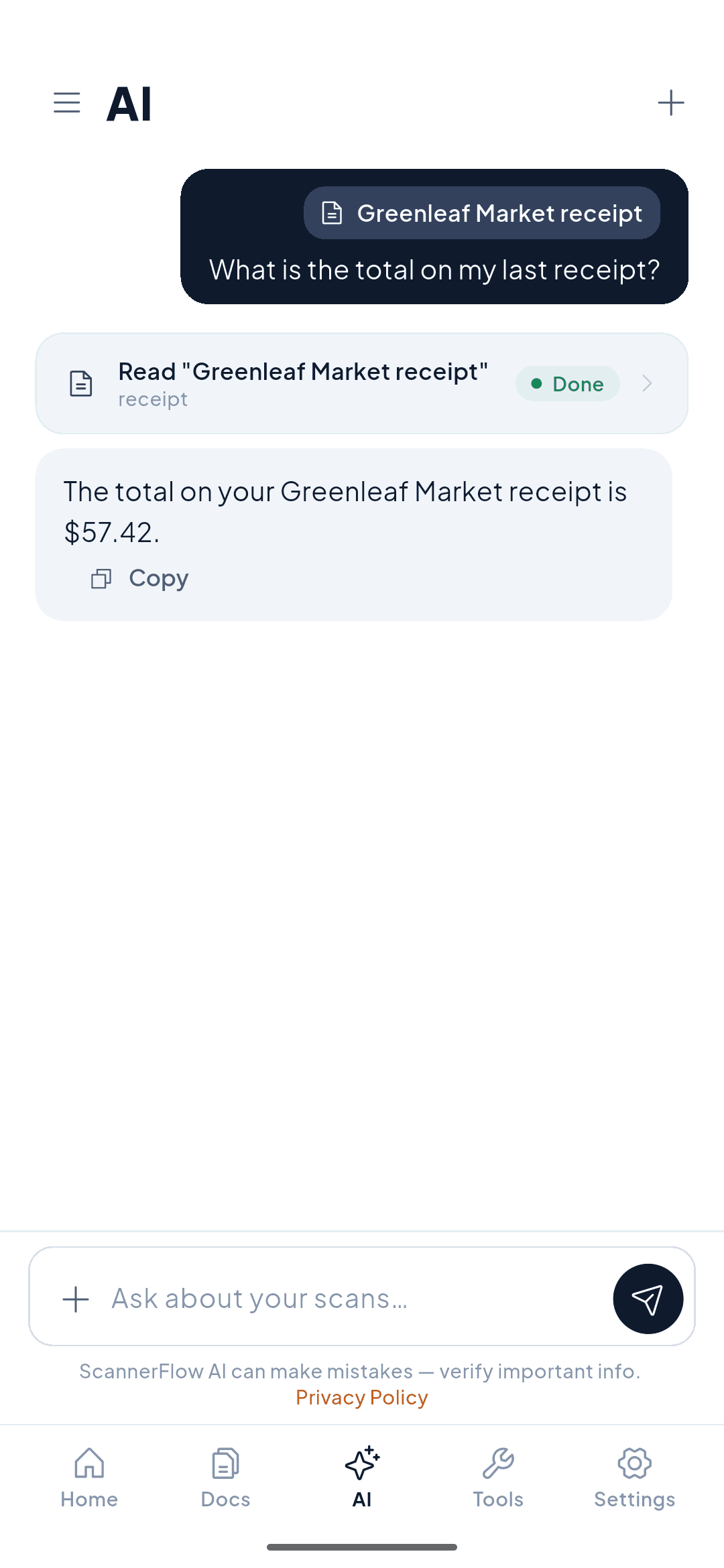
Attach any scan or PDF and ask a question. The assistant reads the document and answers from it — find the total on a receipt, the due date on a bill, the notice period in a contract. It can also fill in a form, rename a document after what it says, or file it into a folder.
e.g. “What’s the total on my last receipt?”
Summarize
AI tab
Ask for a summary of a multi-page scan and get the key points across all the pages — then follow up: “shorter”, “just the action items”, “what are the risks?”.
e.g. “Summarize this contract in five bullets”
Translate
AI tab
Translate in the AI tab: attach the scan and type “translate this to English”. Works for a menu, a form or a letter in another language. Keep asking about the translated text afterwards.
e.g. “Translate this letter to English”
Extract text (OCR)
Home › Extract text
Turn a photo or scan into copyable text. Recognition runs on your phone with Google ML Kit — no upload needed for this step. Free users get 3 text extractions a day.
e.g. a business card → contacts
Convert to Word or Excel
Home › Convert to Word · Tools › Convert
Get an editable .docx from any scan or PDF, or an Excel file from a printed table. The tool opens for everyone; converting is a Premium feature.
e.g. contract.pdf → contract.docx
Point AI at a photo
Tools › AI
Beyond documents: solve a maths problem from a photo, identify a plant, or count the calories in a dish. These AI scan modes are Premium.
e.g. a worked solution from a photo of the problem
How to
How to scan a document and ask AI about it
About two minutes the first time; four taps once you know where things are.
- 1
Scan the document
On the Home tab tap “Scan a document”. Point the camera at the page; edges are detected and cropped automatically. Add more pages if there are several, then save. The scan is backed up to your encrypted cloud library.
- 2
Open the AI tab and attach the scan
Open the AI tab and attach the scan with the + button in the composer.
- 3
Ask in plain language
Type what you need: “summarize this”, “what is the total?”, “when is this due?”, “translate to English”, “rename it after the vendor and date”. ScannerFlow answers from the text of your scan.
- 4
Use the result
Copy the answer, let the AI rename or file the document, extract the full text, convert it to Word (Premium), or share the PDF — whatever the job needs.
Scan documents for AI
Clean text for any AI — or use the one built in
To drop a paper document into a language model you first need accurate text. ScannerFlow gives you both routes.
Extract text, paste anywhere
“Extract text” on the Home tab runs on-device OCR and gives you the page as plain text with Copy and Share buttons — ready for ChatGPT, Claude, Notion or an email.
Or ask ScannerFlow’s AI directly
Attach the scan in the AI tab and ask. No export, no retyping, and your chat threads are saved so you can come back later.
Secure document scanning for AI
What leaves your phone, and what doesn’t
Text recognition runs on your device. Every scan is backed up automatically to encrypted cloud storage on Google Cloud (Firebase), encrypted in transit and at rest, so a lost phone does not mean lost documents. When you use an AI feature, the document’s text (or the image, for photo features) is sent to our AI provider, OpenAI, to produce the answer. There are no ads and no third-party ad SDKs, and we never sell your data. Details in the Privacy Policy and the scanner app privacy guide.
Real use cases
Who scans documents with AI
Students & researchers
Scan a chapter or a paper, ask for the main arguments before an exam, and pull quotes as text instead of retyping them.
Freelancers & small business
Scan a contract and ask about payment terms, or have the AI rename each receipt after the vendor and date and file it.
Travellers
Scan a menu, form or letter in another language and read it in yours — then ask what a section means.
Anyone with a pile of paper
Letters, statements, forms: scan them, ask “what is this asking me to do?”, and let the AI file them into folders.
AI document scanner FAQ
What is an AI document scanner?
An AI document scanner does more than turn paper into a PDF. After it captures a page, it reads the text so you can ask the document questions, get a summary, translate it, or pull out details like a total or a due date. ScannerFlow combines a phone camera scanner with an AI tab that works on the documents you scan.
How do I scan a document with AI in ScannerFlow?
Tap “Scan a document” on the Home tab and capture the page (auto-crop and multi-page are built in). Open the AI tab and attach the scan with the + button in the composer, then type your question: “summarize this”, “what is the total?”, “translate to English”. The answer comes from the text of your scan.
Does the AI run on my phone?
Text recognition (OCR) runs on your phone with Google ML Kit. The AI features — chat, summaries, translation and photo analysis — send the document’s text or image to our AI provider, OpenAI, to produce the answer. Your scans are backed up to encrypted cloud storage (Google Cloud / Firebase), encrypted in transit and at rest. No ads, and we never sell your data.
Is the AI document scanner free?
ScannerFlow is free to download. Every day you get 3 free scans, 3 free text extractions and 10 free AI messages; free exports carry a small “Scanned with ScannerFlow” watermark. Premium ($5.99 per week after a 3-day free trial; monthly and annual plans available) lifts the daily caps, removes the watermark and adds Word and Excel conversion, password protection and more AI messages.
Can I use ScannerFlow to scan documents for ChatGPT or other AI tools?
Yes. Tap “Extract text” on the Home tab and ScannerFlow’s on-device OCR turns the page into clean text you can copy into ChatGPT, Claude or any other tool — models read text far more reliably than a photo. Or skip the copy-paste and ask ScannerFlow’s own AI tab about the document directly.
Is ScannerFlow an AI PDF scanner?
Yes. It scans paper into multi-page PDFs, imports existing PDFs, and lets you ask AI about either. Because OCR and the AI tab are built in, a scanned PDF can be searched, summarized, translated or converted to Word rather than just stored.
Is there an iPhone version?
Not yet. ScannerFlow is currently Android-only.
Start here
- ScannerFlow for Android
Scan, extract text, sign, convert and ask AI — one tap per job.
- ID scanner to PDF
Front and back of an ID card on one A4 page, ready to send.
Get ScannerFlow
Scan it. Ask it. Done.
Download ScannerFlow for Android, scan a page, and ask the AI tab your first question.
Free to download · Android · 3 free scans a day · Premium $5.99/week after a 3-day trial