Scan an ID card to PDF — both sides on one page.
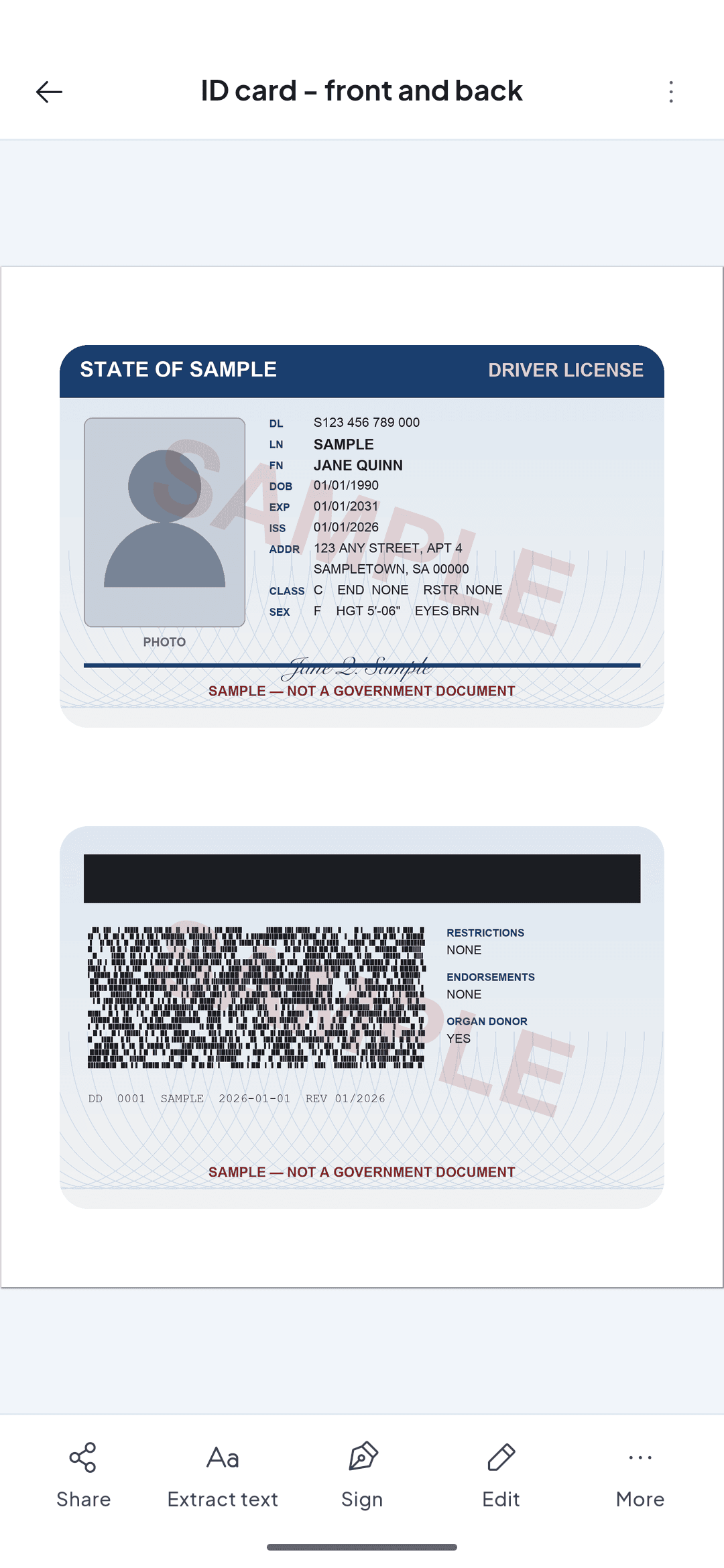
Need to send a copy of a driver's licence or ID? Tap Scan an ID card on the Home tab: capture the front, flip, capture the back, and ScannerFlow puts both sides on one A4 page, auto-cropped and sharp. Save it as a PDF and send it.
e.g. driver’s licence → ID.pdf
Free to download · Android · Free to try
When you need an ID scan
A clear, complete copy — without the photocopier
Banks, landlords, HR onboarding, hotel check-ins, and verification forms all ask for an ID copy. A phone scan beats a blurry photo and saves a trip to the copy shop.
Both sides, one page
Most forms want the front and the back. ID card mode puts both on a single A4 page instead of two loose photos.
Edges and corners square
Auto-crop straightens the card and removes the desk behind it, so the copy looks scanned — not snapped at an angle.
Every detail legible
The ID number, name, and expiry date have to be readable. Auto-enhance keeps small print crisp instead of blurred.
What to capture on an ID
Make sure the whole card is in frame — no corners cut off — and that the photo, full name, ID / license number, and expiry date are sharp. For a passport, capture the entire photo page including the machine-readable zone at the bottom.
Step by step
How to scan both sides of an ID onto one PDF page
Most forms want the front and back together. ScannerFlow’s ID card mode does the layout for you — four taps.
- 1
Tap “Scan an ID card” on the Home tab
It opens the ID card camera directly. Place the card on a dark, matte surface in even light so the edges stand out.
- 2
Capture the front
Fit the card in the on-screen frame and capture. Edge detection crops to the card so the desk behind it disappears.
- 3
Flip it and capture the back
The app asks for the back next. Capture it the same way. ScannerFlow places the front and back together on one A4 page automatically.
- 4
Save as PDF and share
Name it (e.g. ID.pdf), save, and share only with the office or person who needs it. Free exports carry a small “Scanned with ScannerFlow” mark; Premium exports are clean.
Why ScannerFlow
A scanner you can trust with sensitive documents
Encrypted backup, on-device OCR
An ID is sensitive data. Scans are backed up to encrypted cloud storage (Google Cloud / Firebase) — encrypted in transit and at rest — and you can delete them any time. Text recognition runs on your phone. No ads, no data-selling.
Front and back on one page
ID card mode composes both sides on a single A4 page — the format verification forms and HR portals actually expect. Passport mode handles the photo page.
Auto-crop and straighten
Real-time edge detection squares up the card and trims the background for a clean, professional-looking copy.
Sharp, readable details
Auto-enhance keeps the ID number, name, and expiry date legible so your copy is accepted the first time.
Pro tips
Tips for a clean, accepted ID scan
Kill the laminate glare
IDs are glossy. Angle slightly away from overhead light so the hologram and photo do not white out.
Fill the frame
Move close enough that the card fills most of the screen — that keeps the small print readable after cropping.
Keep front and back together
Use ID card mode rather than two photos. A lone front-side copy gets rejected by most verification desks.
Share, then delete if needed
Once you have sent the copy where it needs to go, remove it from your library if you would rather not keep an ID file around.
ID scanning FAQ
How do I scan both sides of an ID into one file?
Tap “Scan an ID card” on the Home tab. ScannerFlow guides you to capture the front, then the back, and composes both sides on one A4 page automatically — the format offices, landlords and verification forms ask for. Save it as a PDF and share.
Is it safe to scan my ID with this app?
Text recognition runs on-device, so if you extract the text of your ID it is read on your phone. The scan itself is backed up to encrypted cloud storage (Google Cloud / Firebase), encrypted in transit (TLS) and at rest (AES-256), and you can delete it from the app at any time. ScannerFlow shows no ads, uses no third-party ad SDKs and does not sell your data. See our scanner app privacy page for the full details.
Can I scan a passport page?
Yes. Tools → Scan → Passport is a single-capture mode for the photo page. Lay the passport flat, let the camera detect the page edges, and use the Auto filter so the printed details and machine-readable zone stay crisp.
Will the small print on a license come out readable?
Position the card to fill the frame and capture in even light. ScannerFlow auto-crops and sharpens the image, and OCR can extract the printed text so the details remain legible.
Is it free?
ScannerFlow is free to download and ID card mode is free to use. The free plan allows 3 scans a day and puts a small “Scanned with ScannerFlow” watermark on exports; Premium ($5.99/week after a 3-day free trial) lifts the cap and removes the watermark.
Start here
- ScannerFlow for Android
Scan, extract text, sign, convert and ask AI — one tap per job.
- AI document scanner
Scan a page, then ask AI to summarize, translate or find a detail.
Scan your ID to a clean PDF.
Both sides on one page, ready to send. Free to download on Android; 3 free scans a day.