How to scan a document in 5 steps
The method below works with any scanner — a flatbed, your phone's built-in scanner, or an app. Using an Android phone? The Android guide has the exact taps for Google Drive and ScannerFlow.
Free to try · Android
Before you start
The honest version: your phone can already scan
Let's be straight — for a quick single page, your phone already has a scanner built in. On Android the Google Drive app has a scan button; iPhones scan from Notes or Files. For most one-off scans, that's genuinely all you need.
What the built-in tools don't do is what comes after: turning the page into copyable text, putting both sides of an ID card on one page, signing, converting to Word, or asking what the document says. That's where a dedicated scanner like ScannerFlow (Android) earns its place. First, the universal method.
The method
How to scan a document, step by step
Works with your phone’s built-in scanner or a dedicated app.
- 1
Lay the document on a flat, contrasting surface
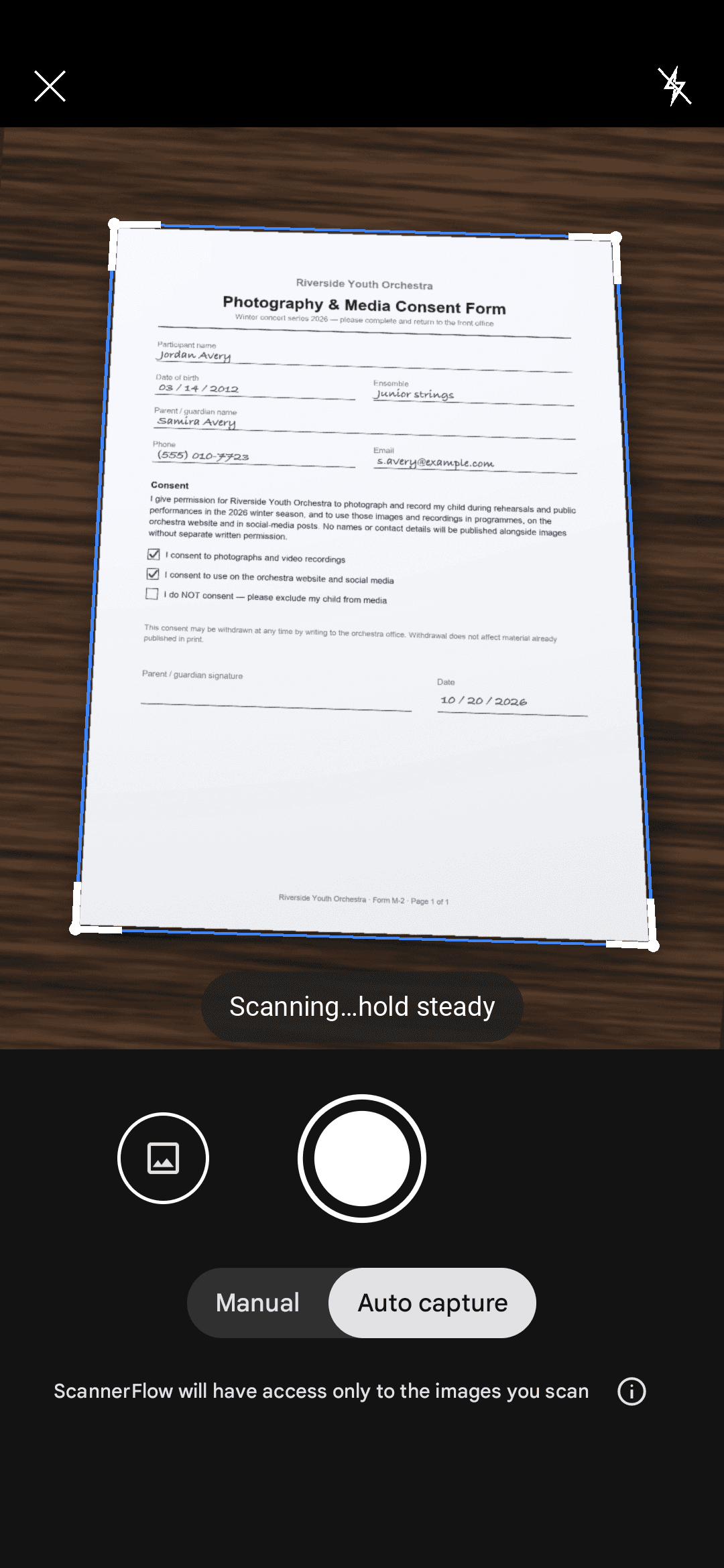
Put the page on a desk or table that contrasts with the paper — a dark surface under white paper makes the edges easy to detect. Smooth out folds and make sure the whole page is in view.
- 2
Find good, even light
Natural daylight or a bright overhead light works best. Avoid harsh shadows and glare; if your own shadow falls on the page, move so the light is behind your phone, not behind you.
- 3
Hold the phone parallel and let it auto-detect the edges
Hover the camera flat over the page. A good scanner app (including your phone’s built-in scanner) draws a border around the document automatically. Wait for the border to lock onto all four corners.
- 4
Capture, then crop and enhance
Tap to capture — or let auto-capture fire when the page is steady. Adjust the corners if needed, then apply a filter: auto-enhance for most documents, black & white for text and receipts, color for forms and photos.
- 5
Save as a PDF and share
Add more pages if it’s a multi-page document, then export. PDF is the format almost every app and office accepts. From there you can email it, upload it, or send it to any app on your phone.
Do more with ScannerFlow
Where a dedicated scanner pays off
Built-in scanning handles the basics. ScannerFlow handles what comes next.
Extract text
Tap “Extract text” and the page becomes copyable text, recognised on your phone. 3 free extractions a day.
Ask AI about a document
Attach the scan in the AI tab and ask for a summary, a translation or the total — the answer comes from your scan.
ID card, sign, convert
Scan an ID card with both sides on one page, sign any page, import a PDF, or convert a scan to Word (Premium).
Clean filters & easy export
Auto, black & white and original filters sharpen faded paper, then export to PDF or JPEG and share anywhere.
Frequently asked questions
Can I scan documents without a separate app?
Yes. Most modern phones can scan basic documents with built-in tools — on Android the Google Drive app has a scan button, and iPhones scan from Notes and Files. These are fine for a quick single page. A dedicated app like ScannerFlow (Android) adds copyable text, an ID card with both sides on one page, signing, Word conversion and an AI tab.
What’s the best way to scan a multi-page document?
Use a scanner that keeps adding pages into a single PDF. Capture each page one after another, keep the lighting consistent, and review the page order before exporting. ScannerFlow combines all pages into one clean, properly ordered PDF — multi-page scanning is free.
How do I make a scanned document searchable?
You need OCR (optical character recognition), which converts the picture of text into real, selectable text. In ScannerFlow tap “Extract text” on the Home tab or on any saved document: recognition runs on your phone, the text is searchable in the Docs tab, and you can copy it or ask the AI tab about it. Free users get 3 text extractions a day.
How do I get the clearest possible scan?
Use even lighting with no glare, hold the phone parallel to the page, fill the frame with the document, and let edge detection lock all four corners before capturing. Then apply the auto-enhance or black & white filter to sharpen text.
Is ScannerFlow free?
ScannerFlow is free to download: 3 free scans and 3 free text extractions a day, with a small “Scanned with ScannerFlow” watermark on free exports. Premium ($5.99/week after a 3-day free trial; monthly and annual plans available) lifts the daily caps, removes the watermark and adds Word/Excel conversion and password protection. Android only.
Start here
- ScannerFlow for Android
Scan, extract text, sign, convert and ask AI — one tap per job.
- AI document scanner
Scan a page, then ask AI to summarize, translate or find a detail.
- ID scanner to PDF
Front and back of an ID card on one A4 page, ready to send.
Try a smarter scan
Scan, extract text, sign, convert and ask AI — one tap per job. Free to download on Android; 3 free scans a day.