How to scan documents to PDF on Android
To scan documents to PDF on Android, you have two good options: the free scanner already built into Google Drive for a quick page, or a dedicated app like ScannerFlow when you need OCR, longer multi-page files, and AI. This guide walks through both — and, honestly, when each one is the right call.
By Maya Feldman
Writer, ScannerFlow · Updated August 2026 · 7 min read
The short answer
For a single page, Android can already do it
No app-store detour required. The Google Drive app — pre-installed on most Android phones — has a scanner built in. Tap the “+” button, choose “Scan,” capture the page, and save it to Drive as a PDF. Some Samsung Galaxy phones also detect documents right in the stock Camera app. For a one-off page you need to email or upload, that is genuinely all it takes.
Where the built-in route runs out of road is everything after the capture: getting selectable text out of the scan (OCR in Drive is a manual, online step), keeping a long document tidy, compressing a file that is too big to send, and asking questions about what you scanned. That is the part this guide spends the most time on.
Method 1 — free, built in
Scan to PDF with Google Drive
Best for a quick single page or a short document you just need as a PDF.
- 1
Open Google Drive and tap the "+" button
Drive ships on almost every Android phone. Tap the round "+" (New) in the bottom-right corner to open the create menu.
- 2
Choose "Scan"
The camera opens with a document mode. On newer Drive versions the scanner has its own shutter and an auto-capture toggle.
- 3
Capture, then crop to the page edges
Hold the phone flat above the page. Drive draws a crop box — drag the corners so it hugs the document, and pick a filter if the paper is faded.
- 4
Add more pages, or finish
Tap the "+" to add another page to the same file, or the checkmark when you are done. Every page lands in one PDF.
- 5
Name it and save to Drive
Give the file a real name (not "Scan_20260809") so you can find it later, then Save. It uploads to your Drive as a PDF.
That is the whole flow. The catch: the resulting PDF is an image of the page, so you cannot search or select the text inside it until you run OCR separately. To do that in Drive you open the file as a Google Doc, which re-processes it online. Fine once; tedious if you scan often.
Method 2 — for documents you'll reuse
Scan to PDF with ScannerFlow
Best when the scan needs to be searchable, longer, smaller, or summarized — not just captured.
- 1
Install ScannerFlow and tap scan
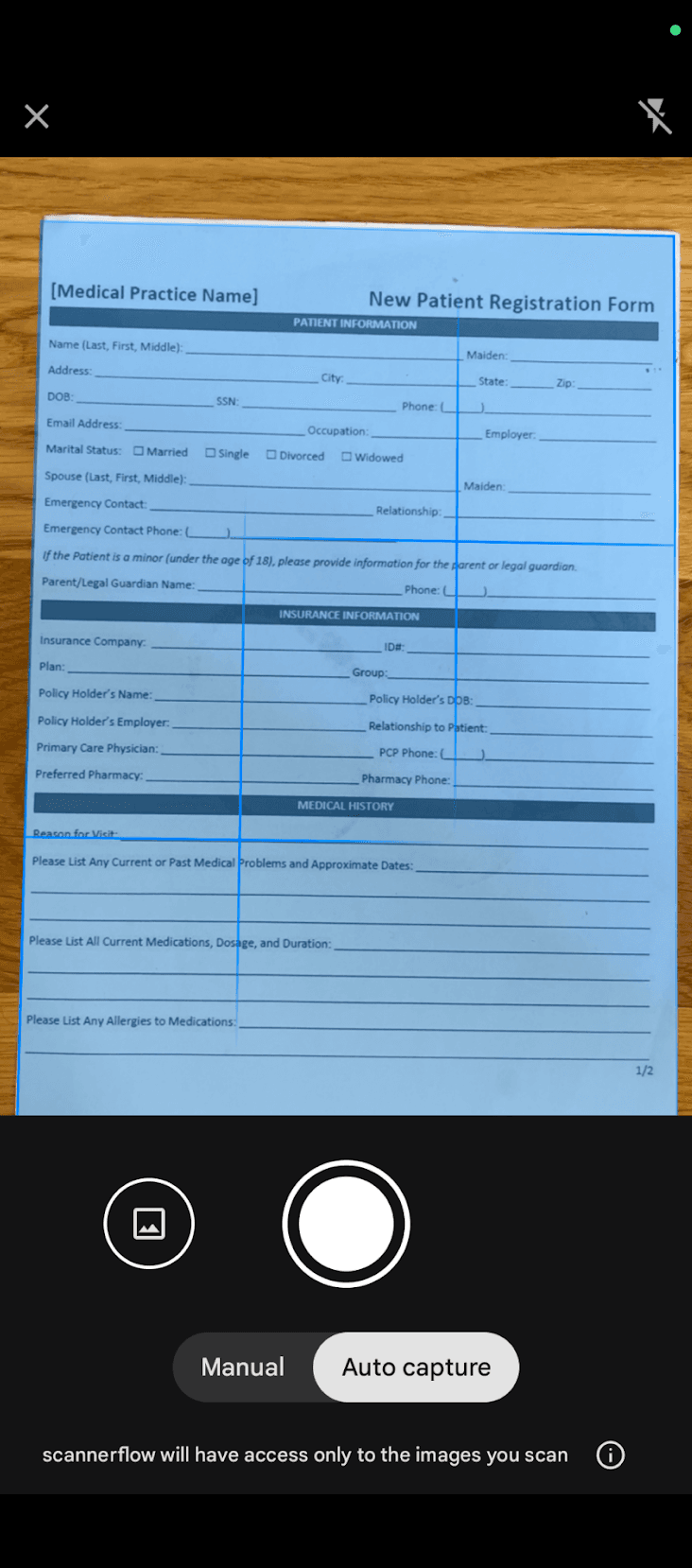
Open the app and tap the scan button. Real-time edge detection frames the page and auto-captures when it is steady and in focus.
- 2
Auto-crop and enhance
The perspective is corrected automatically. Pick auto-enhance for most documents, black & white for text and receipts, or color for forms and photos.
- 3
Stack every page into one document
Keep capturing to add pages. Reorder by dragging, delete any dud shots, and the whole set stays as a single document in the right order.
- 4
Let on-device OCR make it searchable
OCR runs on your phone right after the scan, so the PDF text is selectable and searchable — no "open as Google Doc" round trip.
- 5
Export the PDF — or ask the AI about it
Share the multi-page PDF to Gmail, Drive, or any app. Or ask the built-in AI what the document says before you send it.
The difference is what you get for free with every scan: automatic on-device OCR, reliable multi-page PDF export, and an AI layer that reads the document so you can ask what it says or summarize it before sharing.
Which one
Google Drive scanner or a dedicated app?
A quick gut-check so you are not over-engineering a one-page scan — or under-tooling a 40-page one.
Use Google Drive when…
- · You need one page, right now, as a PDF.
- · You do not need to search or copy the text.
- · The file will live in Drive anyway.
- · You want zero extra apps.
Use ScannerFlow when…
- · The PDF needs to be searchable (automatic OCR).
- · It is many pages and order matters.
- · The file is too big to email and needs shrinking.
- · You want to summarize or chat with the document.
Why it matters
A PDF is the format; OCR is what makes it useful
Searchable text
OCR turns the picture of your page into real text you can search and copy. Without it, a scanned PDF is just a photo in a wrapper.
One tidy file
Multi-page export keeps a contract or report as a single, correctly ordered PDF instead of a scattered folder of images.
Answers, not just storage
Once the text is readable, the AI can summarize the document or answer questions about it — the part a plain scanner never reaches.
Scan-to-PDF on Android — FAQ
How do I scan a document to PDF on Android for free?
Use the Google Drive app that comes pre-installed on most Android phones: tap the "+" button, choose "Scan," capture the page, add any extra pages, and tap Save. The file uploads to your Drive as a PDF at no cost. It is the fastest free option for a quick single- or few-page document.
Where does Android save a scanned PDF?
A scan made in Google Drive is saved to your Drive account as a PDF (in the folder you chose, or "My Drive" by default). Samsung Camera scans usually go to your Gallery. ScannerFlow keeps every scan in one in-app library and lets you export a copy as a PDF wherever you want it.
Do Android scans become searchable PDFs automatically?
Not by default. Google Drive can OCR a scanned PDF only when you open it as a Google Doc — a manual, online step. ScannerFlow runs OCR on-device automatically after each scan, so the PDF is searchable and its text is copyable straight away.
How do I scan multiple pages into one PDF on Android?
In Drive’s scanner or in ScannerFlow, capture the first page, then tap the "+" (or the shutter again) to add each following page to the same file before you save. Everything exports as one multi-page PDF. There is a full walkthrough in our guide on scanning multiple pages into one PDF.
Is ScannerFlow free on Android?
ScannerFlow is free to download and free to try on Android. Advanced features such as multi-page PDFs, AI chat, and Cloud Sync are part of an optional subscription. There is no "free unlimited" plan.
About the author
Maya Feldman writes ScannerFlow's guides on mobile scanning, OCR, and turning paper into clean PDFs. She has spent more hours than she'd like to admit fixing crooked, oversized, unsearchable scans — so these guides are mostly the shortcuts she wishes she'd had at the start.
More from Maya: the ScannerFlow guides hub.
Keep reading
Reduce a scanned PDF's file size
When your scan is too big to email.
Scan multiple pages into one PDF
Combine a stack into a single file.
How to scan on Android
The wider Android scanning overview.
Scan to PDF
The scan-to-PDF feature, end to end.
Scan your first PDF now
Get automatic OCR, multi-page PDFs, and AI chat on your Android scans. Free to try.
Free to download · Android · free to try