How to scan documents on Android
Five steps, any Android phone — Samsung, Pixel, Motorola, OnePlus. Use Google Drive for a quick single page, or ScannerFlow when you also need the text, an ID card on one page, a signature or AI.
- 1
Open a scanner app
Most Android phones already have one: Google Drive (tap + → Scan). For searchable text, ID cards on one page, signing and AI, open ScannerFlow and tap “Scan a document” on the Home tab.
- 2
Lay the page flat and frame it
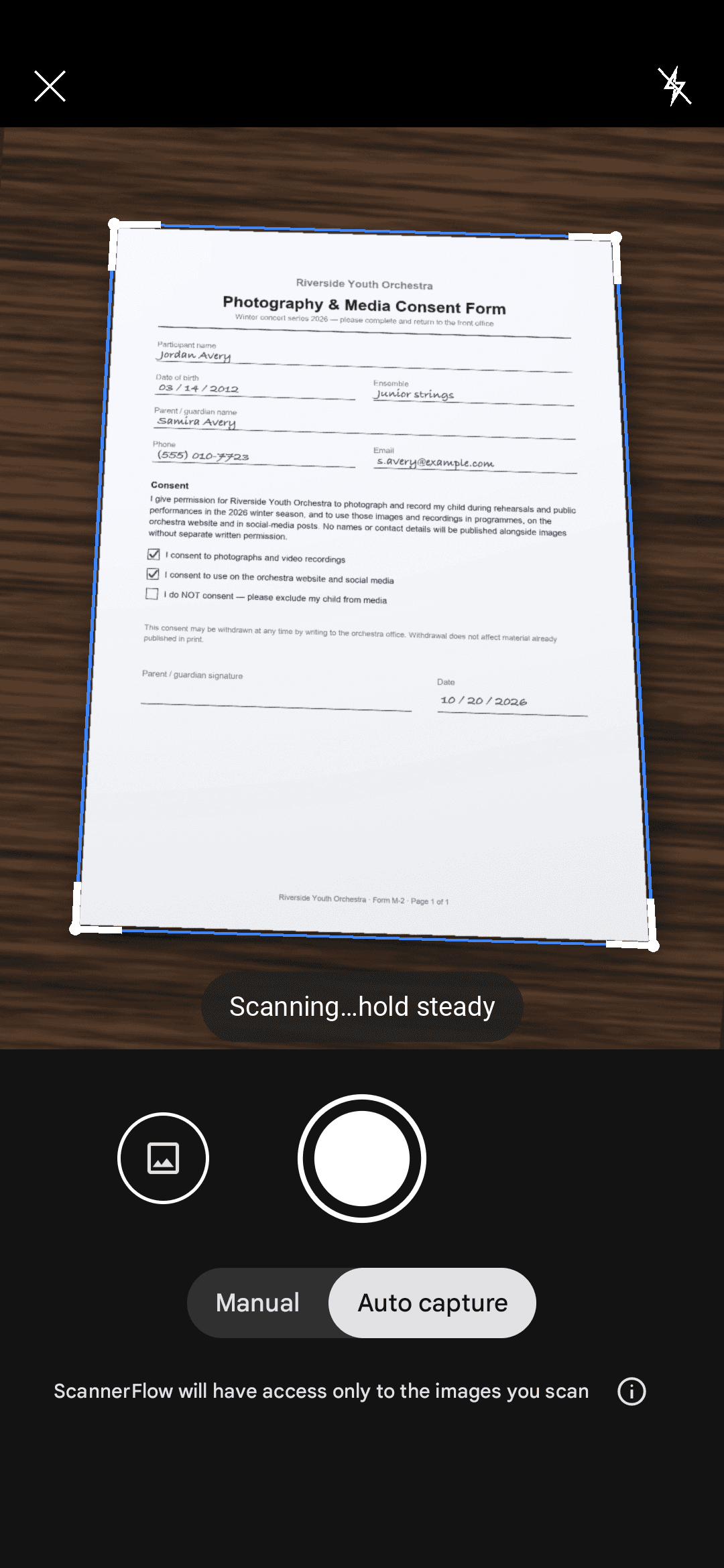
Put the document on a flat, contrasting surface in even light and hold the phone parallel above it. The scanner draws an outline around the page edges automatically.
- 3
Capture and auto-crop
Tap the shutter. The page is cropped to its edges and straightened. In ScannerFlow pick a filter — Auto for most paper, B&W for receipts and text, Original for colour forms.
- 4
Add more pages
Keep capturing for a multi-page document; pages stay in the order you scanned them. Reorder, retake or delete any page before you save.
- 5
Save as PDF and share
Tap Save. Name the file and choose PDF (or JPG). Share it to Gmail, WhatsApp, Drive or any app. In ScannerFlow the scan is also backed up to your encrypted cloud library, and “Extract text” turns it into copyable text.
Free to download · 3 free scans a day
Built into Android
Scan with Google Drive or the Samsung camera
Two free, no-download ways to scan a single page on Android.
Scan with Google Drive
- 1
Open the Google Drive app (pre-installed on most Android phones).
- 2
Tap the “+” (New) button in the bottom-right corner and choose “Scan”.
- 3
Capture the page; drag the crop corners if needed and pick a filter.
- 4
Tap “+” to add more pages, then tap Save to store the PDF in Drive.
Scan with the Camera (Samsung)
- 1
Many Samsung Galaxy phones detect documents in the stock Camera app.
- 2
Point the camera at the page and wait for the “Scan document” prompt.
- 3
Tap the prompt to capture and auto-crop; save to Gallery or share.
- 4
Availability depends on the phone model and One UI version.
Both give you an image inside a PDF. What they do not give you: the text (Drive’s OCR is a manual “open as Google Doc” step), an ID card with both sides on one page, a signature, a Word file, or a way to ask what the document says. That is where ScannerFlow picks up.
With ScannerFlow
Everything after the scan, one tap from Home
ScannerFlow’s Home tab lists the jobs people do most, each with an example. Scanning is first; the rest start from the same screen.
Extract text
Turn a photo or scan into copyable text, on-device. 3 free extractions a day. Image to text →
Scan an ID card
Front and back on one A4 page, ready to email. ID scanner to PDF →
Sign, import, convert
Sign a document, import a PDF to edit or compress it, turn photos into one PDF, or convert a scan to Word (Premium).
Ask AI about a document
Attach the scan in the AI tab and ask for a summary, a translation or the total. AI document scanner →
Free: 3 scans and 3 text extractions a day, watermarked exports. Premium $5.99/week after a 3-day free trial lifts the caps and removes the watermark. Text recognition runs on your phone; scans are backed up to encrypted cloud storage.
Android scanning FAQ
Can I scan a document with my Android phone?
Yes. Any modern Android phone can scan documents with its camera. The Google Drive app has a built-in scanner (tap + → Scan), some Samsung Galaxy phones detect documents in the Camera app, and a dedicated app like ScannerFlow adds text extraction, ID-card scanning onto one page, signing, PDF tools and an AI tab.
How do I scan a document to PDF on Android?
Capture the page in Google Drive’s scanner or in ScannerFlow, add any extra pages, then tap Save and choose PDF. All pages are saved as one multi-page PDF you can share, print or store. In ScannerFlow, multi-page PDFs are free; free exports carry a small “Scanned with ScannerFlow” watermark.
Can I scan without installing an app?
Usually. Google Drive comes pre-installed on most Android phones and scans a page to PDF for free. For a single page you need to email, that is all you need. ScannerFlow is for the jobs Drive does not do: copyable text, an ID card with both sides on one page, signing, converting to Word, and asking AI about the document.
How do I extract or search text from an Android scan?
Google Drive can OCR a scanned PDF only when you open it as a Google Doc — a manual, online step. In ScannerFlow tap “Extract text” on the Home tab (or on any saved document): recognition runs on your phone with Google ML Kit and you get the text with Copy and Share buttons. Free users get 3 text extractions a day.
Where do Android scans get saved?
Google Drive scans are saved to your Drive account as PDFs. Samsung Camera scans go to your Gallery. ScannerFlow keeps every scan in its Docs tab and backs it up to encrypted cloud storage, so you can find it on a new phone.
Is ScannerFlow free on Android?
ScannerFlow is free to download. You get 3 free scans and 3 free text extractions a day, and free exports carry a small “Scanned with ScannerFlow” watermark. Premium is $5.99 per week after a 3-day free trial (monthly and annual plans are also available) and lifts the daily caps, removes the watermark, and adds Word and Excel conversion and password protection.
Start here
- ScannerFlow for Android
Scan, extract text, sign, convert and ask AI — one tap per job.
- AI document scanner
Scan a page, then ask AI to summarize, translate or find a detail.
- ID scanner to PDF
Front and back of an ID card on one A4 page, ready to send.
Scan smarter on Android
Scan to PDF, extract text, scan an ID card onto one page, sign, and ask AI about any scan. Free to download on Google Play.