How to scan documents on iPhone
Your iPhone can scan documents straight from Notes or Files — no extra app required. Here's exactly how, step by step.
ScannerFlow is currently available on Android. This guide covers the built-in way to scan on iPhone.
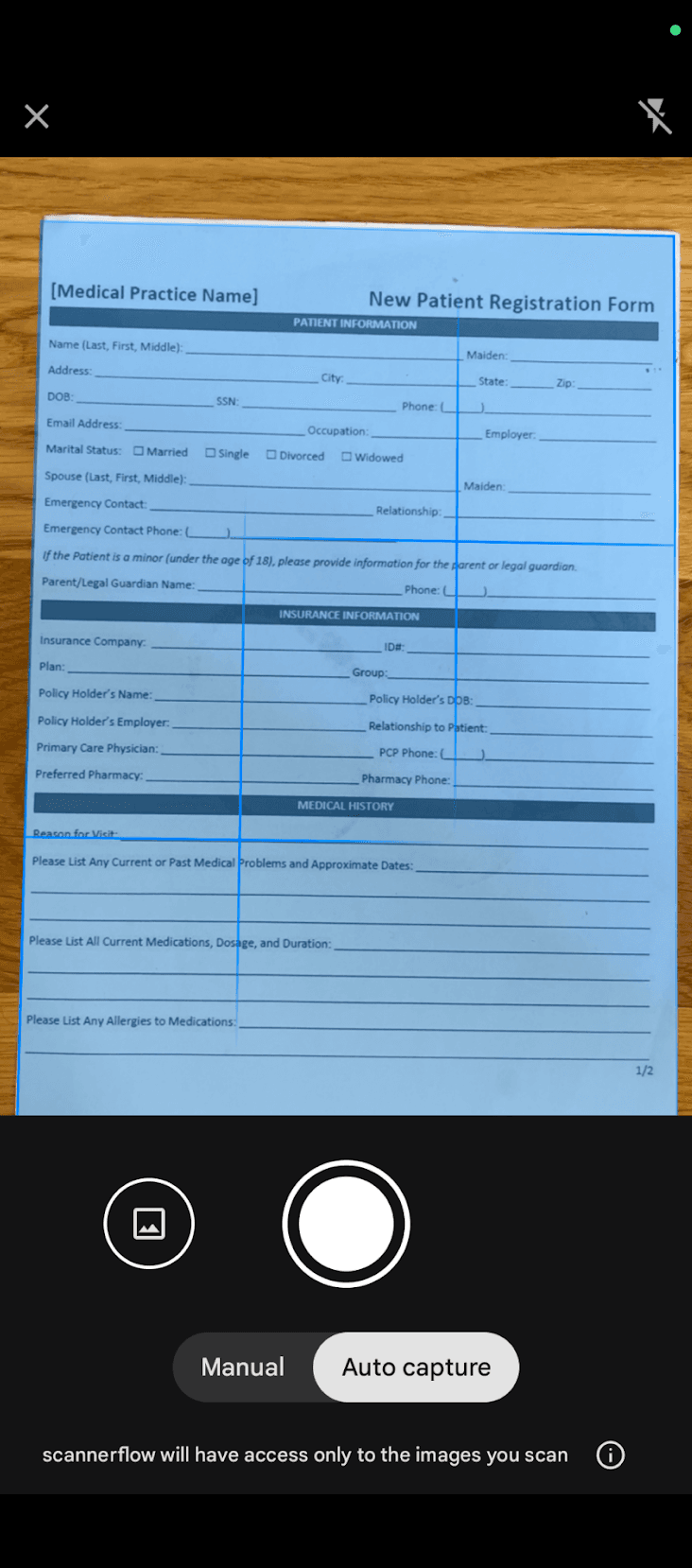
The honest answer first
You don't need an app for a quick scan
Apple builds scanning right into iOS. The Notes app and the Files app both have a “Scan Documents” option that auto-detects the page edges and saves a clean PDF. For a single page you need to email once, that's genuinely all you need — and it's free.
Where iPhone's built-in scanning stops short is everything you do after the scan: making the document searchable with OCR, asking AI to summarize or answer questions about it, managing long multi-page documents, and keeping every scan in one organized library instead of buried in random notes and folders. Below are both built-in methods. (For that fuller workflow, ScannerFlow is available on Android.)
Built into iOS
Scan with Notes or Files
Two free, no-download ways to scan on iPhone.
Scan in the Notes app
- 1
Open the Notes app and create a new note (or open an existing one).
- 2
Tap the camera icon above the keyboard, then choose “Scan Documents.”
- 3
Hold your iPhone over the page — Notes auto-detects the edges and captures it.
- 4
Add more pages if you need them, then drag the corners to fine-tune the crop.
- 5
Tap “Save.” The scan is stored inside that note as a PDF you can share.
Scan in the Files app
- 1
Open the Files app and go to the folder where you want the scan saved.
- 2
Tap the three-dot (•••) menu in the top-right corner.
- 3
Choose “Scan Documents.”
- 4
Capture each page; the corners auto-detect, or adjust them by hand.
- 5
Tap “Save” — the PDF lands directly in that Files folder.
Beyond the basics
What a dedicated scanner adds
Notes and Files nail quick scans. For the full workflow, ScannerFlow is available on Android.
Searchable OCR text
On-device OCR turns every scan into selectable, searchable text you can copy and reuse.
AI chat & summaries
Ask questions about a contract or letter you scanned, or get a one-tap summary right in the app.
Reliable multi-page PDFs
Combine many pages into one tidy, correctly ordered PDF — smoother than juggling pages in Notes.
Private by default
No ads, on-device OCR, and encrypted cloud storage. We never sell your data.
iPhone scanning FAQ
Can I scan a document on iPhone without an app?
Yes. iPhone has scanning built in. Open the Notes app, tap the camera icon, and choose “Scan Documents” — or use the Files app’s three-dot menu and pick “Scan Documents.” Both save a PDF. For a quick single page, no extra app is needed.
Where do iPhone scans get saved?
If you scan from Notes, the PDF is saved inside that note. If you scan from Files, it’s saved into the folder you chose. ScannerFlow keeps all your scans in one organized library inside the app, so you’re not hunting through notes and folders later.
How do I make an iPhone scan searchable or copy its text?
iPhone’s Live Text can select text from images, but it isn’t a full document workflow. For a complete scan-then-OCR experience with AI document chat and summaries, ScannerFlow is currently available on Android.
Is ScannerFlow available on iPhone?
Not yet. ScannerFlow is currently available on Android via Google Play. On iPhone, the built-in Notes and Files apps cover quick single-page scans for free.
Scan smarter on Android
On iPhone, Notes and Files cover the basics. For OCR, AI chat, and multi-page PDFs, ScannerFlow is available on Android — free to try.