Scan business cards to PDF on Android.
Came home from an event with a pocket full of cards? Scan each one and let AI OCR pull out the name, email, phone, and company — so you can save or share the contact in seconds instead of typing it all in.
Free to download · Android · Free to try
Why scan business cards
A card in your pocket is a contact you'll forget
Paper cards get lost, washed in a jacket, or buried in a drawer. Scanning each one the day you get it turns a fleeting handshake into a contact you can actually reach.
Capture the moment
Scan a card right after a meeting while you still remember the conversation — add a quick note before the context fades.
No more retyping
OCR extracts every field, so building a contact is copy-and-paste, not squinting at tiny print and typing email addresses by hand.
A searchable rolodex
Once a card is text, you can search by name or company months later instead of digging through a stack of paper.
What to capture on a business card
The fields you'll want extracted are the full name, job title, company, email, phone number, and website. If the card has a QR code or a different design on the back, scan that side too so nothing is missed.
Step by step
How to scan a business card with ScannerFlow
- 1
Set the card on a contrasting surface
A dark desk under a white card (or vice versa) helps the edge detection lock on instantly. Keep the card flat and uncovered.
- 2
Capture the card
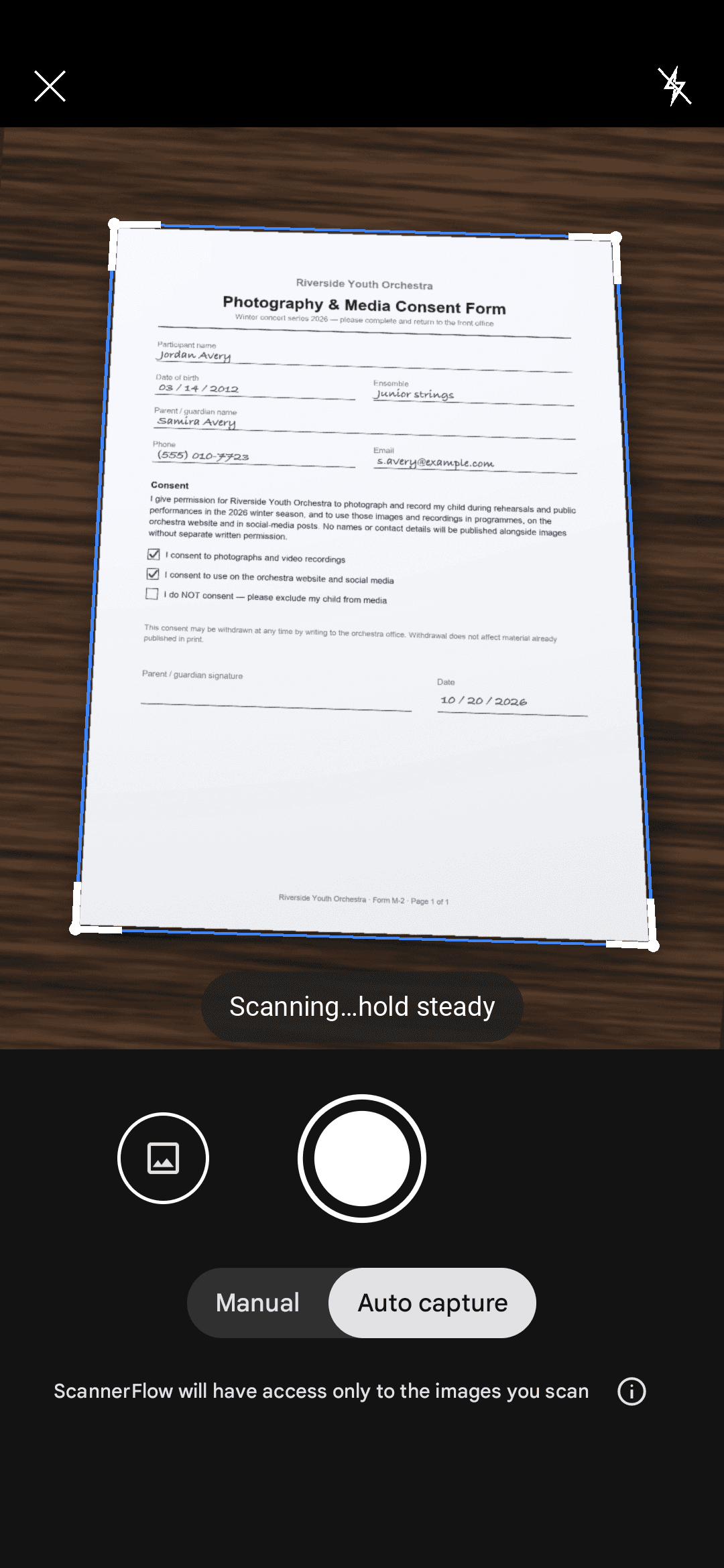
Hold your phone level above it. ScannerFlow finds the edges and auto-crops to the card, dropping the background away.
- 3
Let OCR read the details
Run text recognition to pull the name, email, phone, company, and website into copyable text — no manual typing.
- 4
Save the contact or share it
Copy fields into a new contact, or share the scan to your notes, email, or CRM. Repeat for the whole stack.
Why ScannerFlow
From paper card to usable contact
AI OCR reads every field
On-device text recognition turns the print on a card into editable, copyable text — name, email, and phone, ready to paste.
Save it as a contact
Copy the extracted details straight into a new contact so the person is reachable from your phone, not stuck on paper.
Share anywhere
Send the scan or the extracted text to email, notes, or a CRM with no friction — exports are watermark-free with Premium.
Batch a whole event
Scan card after card into one multi-page PDF, then process the contacts in a single sitting after the conference.
Need the full document toolkit? See the document scanner hub, or compare ScannerFlow against other apps on the alternatives page.
The workflow
Business card → PDF (and text via OCR)
One scan gives you two outputs: a clean PDF of the card you can file or share, and the contact fields as editable text.
- 1
Scan the card
Edge detection auto-crops to the card and drops the background, capturing a sharp, square image.
- 2
Export as PDF
Save the card as a PDF — one per file, or batch a stack into one multi-page PDF to file or email.
- 3
OCR to text
On-device OCR reads the name, email, phone, and company so you can paste the fields into a contact.
How it compares
ScannerFlow vs dedicated card apps
CamCard and ABBYY Business Card Reader are built specifically to file cards into a contacts database. ScannerFlow is a full document scanner that also extracts card details — handy if you want PDFs and contacts from one app.
| Feature | ScannerFlow | CamCard / ABBYY |
|---|---|---|
| Scan card to PDF | Yes — single or multi-page PDF export. | Focused on contact records, not general PDF output. |
| OCR card details to text | Yes — on-device OCR pulls name, email, phone, company. | Yes — core feature, structured into contact fields. |
| Also a full document scanner | Yes — receipts, IDs, books, multi-page docs. | No — purpose-built for business cards. |
| AI chat with your scans | Yes — ask questions and summarize in-app. | No. |
| Pricing | Free to download, free to try; subscription unlocks more. | Free tier with paid plans for higher card volumes. |
Pro tips
Get every detail off the card
Dodge the glare on glossy stock
Premium cards are often laminated. Tilt slightly off the overhead light so OCR can read the text under the shine.
Scan dark cards on a light background
A black card needs auto-enhance and good contrast around it for the gold or white text to register.
Grab the back too
Logos, QR codes, and second-language details often live on the reverse — scan both sides into one file.
Add a note while it’s fresh
Jot where you met the person right after scanning, so the contact has context months later.
Business card scanning FAQ
Can I export scanned business cards as PDF?
Yes. Every scanned card can be saved as a PDF — one card per file, or a whole stack combined into a single multi-page PDF. On-device OCR also extracts the name, email, and phone as text so you can paste them into a contact. Multi-page scanning is free (3 scans and 3 text extractions a day on the free plan).
Does it read the details off a business card automatically?
Yes. After you scan a card, on-device OCR reads the printed text — name, company, job title, email, phone, and website — so you can copy any field instead of retyping it by hand.
Can I scan a whole stack of cards quickly?
Scan them one after another into a multi-page PDF so a full event’s worth of cards lives in a single file, then work through the contacts when you are back at your desk.
How do I get the contact into my phone?
Use OCR to copy the email and phone number, then paste them into a new contact, or share the scan to your notes or CRM. The text is extracted for you, so there is no manual transcription.
Will it handle glossy or dark cards?
Usually, yes. Tilt away from direct light to avoid glare on glossy stock, and use auto-enhance to lift the text on dark or colored cards so OCR can read it.
Is it free?
ScannerFlow is free to download and free to try. You can scan a card and extract its text before deciding on a subscription for advanced features.
Keep exploring
Turn that stack of cards into contacts.
Scan, extract, and save — in seconds per card. Free to download, free to try.