Scan to Word and Excel — editable, not just a picture.
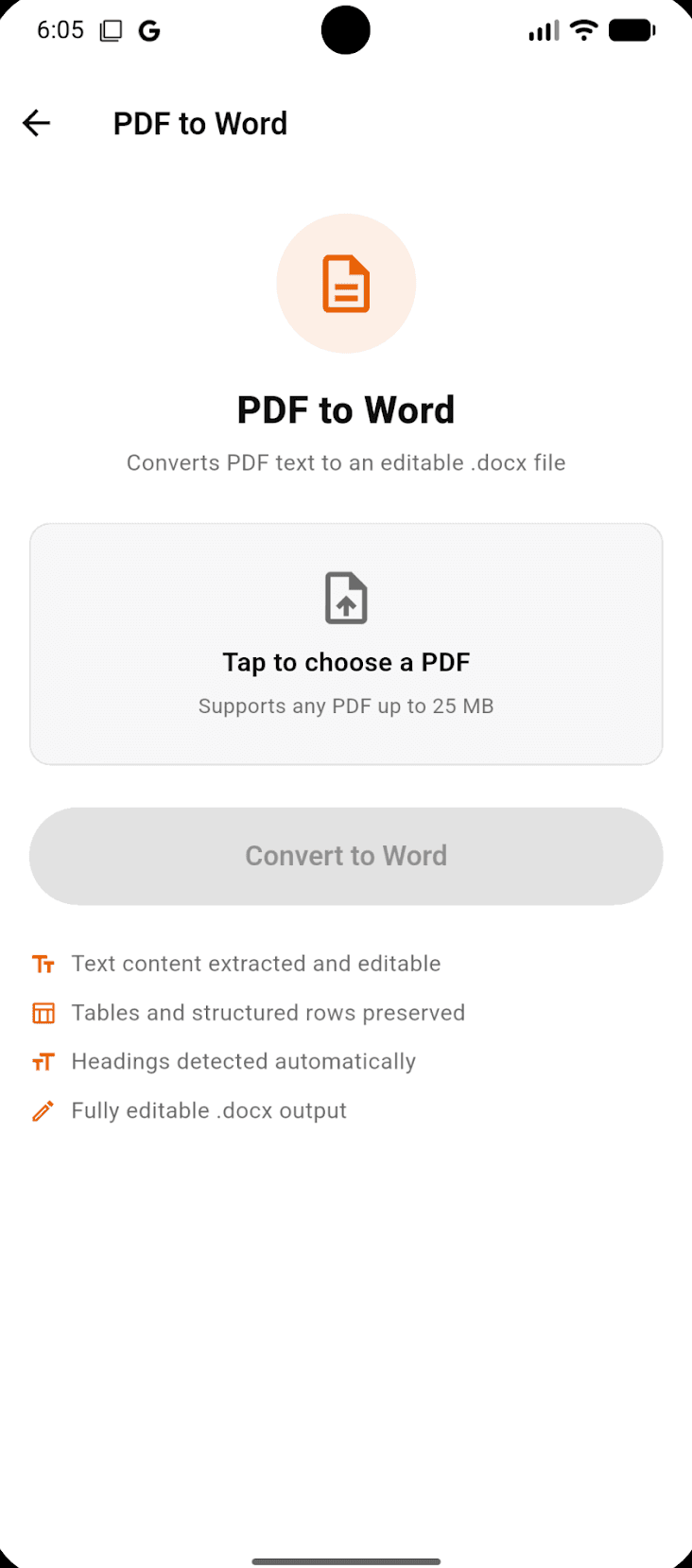
Scan to Word by turning a paper page into real, editable text. Point your phone at the document, let on-device OCR recognize the words, then paste the extracted text straight into Word, Google Docs, or a spreadsheet — no retyping a page you already have in your hand.
Free to download · Android · Free to try
How it works
From paper to editable text in four steps
OCR (optical character recognition) is the bit that matters — it converts the image of your page into text you can select, copy, and edit.
- 1
Scan the page
Capture the document with auto edge detection and enhancement, so the text is crisp and easy for OCR to read.
- 2
Let on-device OCR read it
ScannerFlow recognizes the characters on your phone, turning the scan into selectable, searchable text automatically.
- 3
Copy the recognized text
Select and copy the extracted text — or grab the whole document at once, ready to move somewhere editable.
- 4
Paste into Word, Docs, or Excel
Drop it into your editor or spreadsheet and clean up any formatting. What was paper is now a document you can rework.
The engine behind all of this is OCR. If your main goal is pulling text out of scans, the image-to-text feature is the dedicated workflow — and every scan starts on the document scanner.
What it's for
When scan-to-Word saves the day
Reuse a printed document
Turn an old contract, letter, or report you only have on paper into an editable draft you can update — instead of rebuilding it from scratch.
Get numbers into a spreadsheet
Pull the figures off a printed table or statement with OCR and paste them into Excel or Google Sheets, then tidy the columns.
Quote without retyping
Copy a paragraph from a scanned page straight into an email or essay — selectable text, no manual transcription.
Summarize before you edit
Ask the built-in AI to summarize a long scanned report, then paste just the parts you need into your document.
Setting expectations
Text transfers cleanly; complex layouts need a glance
OCR is excellent at reading text, and for letters, articles, and plain documents it drops into Word almost ready to go. Dense tables, multi-column pages, and unusual fonts are where you will want a quick once-over after pasting — OCR gets the characters, but you may need to nudge the columns or spacing. It still beats retyping the whole thing by hand.
Scan to Word & Excel — FAQ
How do I scan a document to Word?
Scan the page with ScannerFlow, let on-device OCR recognize the text, then copy the extracted text and paste it into Word, Google Docs, or any editor. Because OCR turns the picture of the page into real, selectable text, you get an editable draft rather than a flat image you would have to retype.
Can I scan a table into Excel?
You can extract the text from a printed table with OCR and paste it into a spreadsheet, then tidy up the columns. OCR reads the characters; laying them out into clean rows and columns is where a quick manual check helps, especially for dense financial tables.
Will the formatting come across exactly?
OCR captures the text accurately; complex layouts (multi-column pages, heavy tables, unusual fonts) may need light cleanup once pasted. For plain documents and letters, the text usually drops in cleanly and is ready to edit.
Do I need to retype anything?
That is the whole point of OCR — you should not have to. The scan becomes selectable text you can copy out, so the manual retyping step disappears. You just review and edit.
Is scan-to-Word free in ScannerFlow?
ScannerFlow is free to download and free to try, and on-device OCR runs on your scans. Some advanced features are part of an optional subscription, but you can scan and pull text out to see how the workflow fits before deciding.
Stop retyping what you can scan
Scan a page, extract the text, and paste it into Word or Excel. Free to download, free to try.